We remain fully operational. Our teams are working around the clock to ensure your deliveries continue safely.
قم بتنزيل التطبيق


معلومات عنا
حقوق الطبع والنشر © 2024 Desertcart Holdings Limited
قم بتنزيل التطبيق
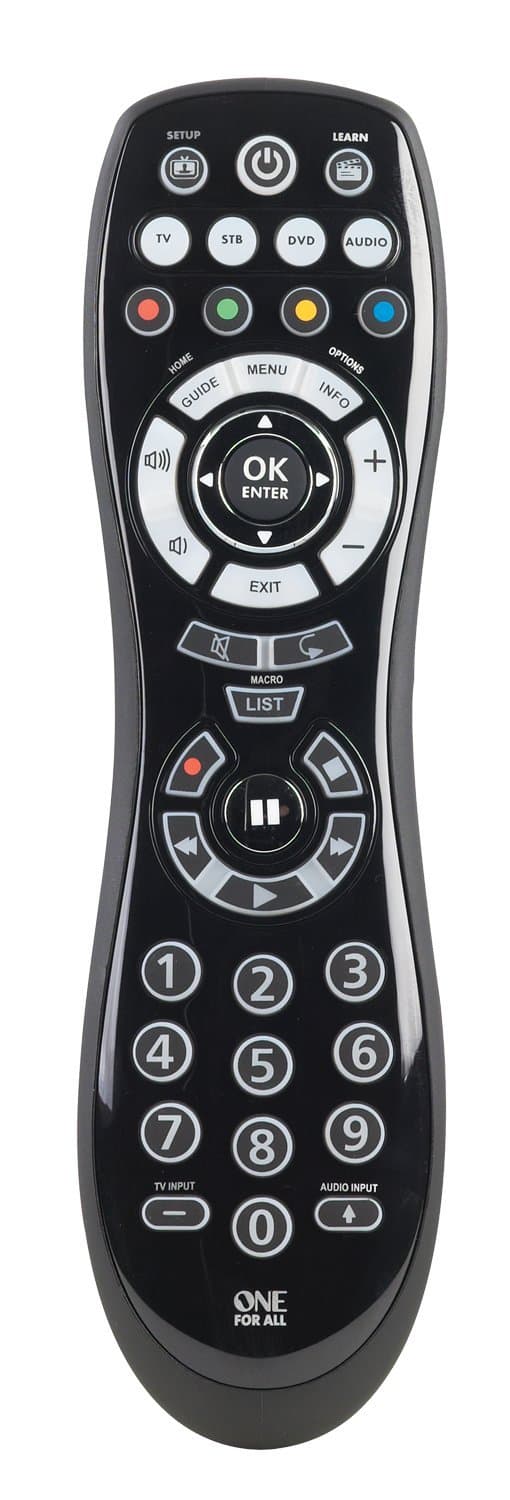
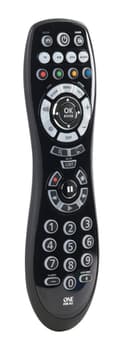
🎬 Elevate Your Viewing Experience with One Click!
The One For All OARUSB04G is a versatile universal remote that simplifies your entertainment experience by controlling up to four devices, including your TV, DVD player, amplifier, and streaming services. With compatibility for over 6000 brands, a user-friendly setup process, and a backlit keypad for easy navigation, this remote is designed for the modern viewer who values convenience and efficiency.
D**E
Remote for Technically Inclined People
Out of the box without RMIR, maybe this is not so good, as some of the lower star reviewers are clearly frustrated by how this highly complex and configurable remote is difficult to get up and running and support and hand holding from the company is apparently below sub par.However, if you are technical, IMHO, this remote is superior to anything else out there I have used. I've been using JP1 for 15 or so years and this remote is the perfect package for it. I had 3 older radio shack remotes, rs-15-2116s, that were worn and I replaced with this model. Over the years I've tried other solutions. I found Harmony too limiting and frustrating for things I could easily do with JP1. My older "awkward" tablet style remotes sit in a box in the basement (they look cool though). There is nothing like a well configured, comfortable, handheld remote. This remote also has a click where you know you pressed the button. You might not think this is a feature, but I like positive feedback the button was pushed. Other reviewers call this a budget remote. I don't need a display on a remote, overlays, web configuration wizards to guide me through setup. Simply put, this remote is the perfect solution for me and there is nothing else out there, that I know of, I would want to replace this remote with. It is fit for purpose by design and is highly configurable.With the latest JP1 extender, this remote handles anything I could ever think of implementing including discreet codes, multi device remotes in one device upgrade (high end receivers usually have this), the ability toggle discreet power on/off signals, macros (w/nesting), key moves (I think this is a much better solution than the activities implementation for controlling multiple devices without having to change the active device), volume punch through, phantom buttons...etc, etc, etc. You may not know what all this is, but when you need it or want it, it's nice to have. Because this remote works as a USB storage device that stores a binary configuration file, no JP1 cable is needed (my older remotes were configured with a "legacy" parallel port). Kudos to URC, USB is a huge plus and I have found this works effortlessly with RMIR (w/ Windows anyways).So if you're a tinker type who likes to get things dialed in exactly how you want them, this is the remote you could be looking for. There is plenty of support on the JP1 forums and hifi-remote.com. It's really a project at first where you learn the software and how remotes work, and there is some satisfaction from that.There is only one minor issue I have with this remote, the directional buttons (which is probably the most used by myself and family as they are the PVR navigation controls) are too small and condensed around the other buttons. I have large hands, and it takes a few days to get the feel for it, you might hit enter by mistake during this break in period. After a few days and you become used to this, it is really a non issue, but I did find it annoying for the first few days.The wife approval factor is also very high with this device, because you can configure it to make sense for the equipment you have. All this being said, if your are not technically oriented and don't have a passion/drive to learn how things work under the covers, look elsewhere, this is not the remote you are looking for.
M**S
Inexpensive universal remote with learning function, not easy to find how to program
I bought this a while ago, and just got around to trying to set it up for my MediaSonic HW180STB HomeWorx HDTV Digital Converter Box with Media Player and Recording PVR function, because it has a remote with tiny keys. After a few hours of research and testing, I finally got the functions I needed programmed, but it was not a pleasant process, and finding the information necessary was not simple. On the other hand, the HomeWorx box, that I bought to record over-the-air TV signals, is not a very easy to use or common device, either.Seeing all of the complaints about the programming process, I thought I would try to provide help based on what I found in my research on the setup process.The manual for a similar model is at [...] It takes a long time to download, but this site does not require setting up an account as the other one I've seen does. The copy button in the manual is the equivalent of the learn button on this remote.I first used the simpleset.com web site to set up the remote. It took a LONG time the first time I tried it; I'm not sure if that was just my internet speed, or the web site itself. It took me MORE THAN A COUPLE OF TIMES to get it to work properly, with at least one time out, so it's not a great site. There are videos on what to do on the web site that HAVE to play before you can perform the steps, but here's the procedure:1. Hook up your remote to your computer via the included USB cable. The plug in on the remote is in the battery compartment, so the battery door has to be removed.2. Find the remote in your directory listing, and upload the settings.bin file from the remote to the web site. (By the way, the web site said that the remote's drive name would be something it wasn't; you may have to just look for something that looks like it means the remote. I think mine was the model number. There were two files on it, "settings.bin" and something else.) (If you're really not a computer person, you are looking for a drive, with a letter like G (definitely not C, and probably not D.)3. There are three choices to set up different parts of the remote:a. Set up each of the device buttons based on the brand of your equipment. I was happy to find Homeworx on the list of DVD players AND STB's.b. You can also set up which devices are controlled by the Watch TV and Watch Movie buttons.c. There was also something else you could set up, but I forget what it was. You might want to check it out just to see if you can use it.4. Once you have chosen your settings, download the new "settings.bin" file created by your choices to the remote. The web site recommended you download directly to the remote. However, I checked to see if the file date changed when I tried to download directly to the remote, and it did not, twice, which means that the new file did not get installed on the remote. So I downloaded to another location on my hard drive (it doesn't matter where, as long as you can find it later), then copied the downloaded file to the remote. Be sure to tell it you want to overwrite the current file when Windows asks. "Settings.bin" was interpreted as "settings.bin" by my operating system; the web site wanted to capitalize the S, while it wasn't capitalized on the remote. It wound up not mattering. You can copy the original file on the remote to another location first if you want to have a backup, just in case!5. Unplug the remote from the computer (be sure to eject it through the operating system first, if necessary) and reinstall the battery door. If the web program gets hung up after the download is done, you DO NOT have to wait for it to tell you to unplug the remote, you can just eject and unplug the remote and continue.6. Follow the instructions to set the remote up on the setup guide:a. Be sure whatever you are trying to set up is on and you can tell when it is turned off.b. Press the Setup button on the remote until the TV button blinks twice.c. Press the device key for what you are trying to set up.d. Point the remote at the device you are trying to set up. You might want to get up close for this setup process; you shouldn't have to be that close to use it later, but if it makes it faster now, it's worth it.e. Press and hold the power key until the device turns off.f. Press the power key again to turn the device back on, and test out the keys.If it didn't work, you can go through the simpleset.com procedure again, or set up individual keys using the "learn" key, or use the Direct Code set procedure if you know the code to your specific device (as opposed to just the brand of TV, etc.), or use the Auto Search feature (the last option, since it takes the longest, and makes you be there to respond as soon as the correct code is found). If only a few keys don't work, it is probably faster just to use the Learn process, which is what I did.To use the Learn procedure:1. Have the currently functioning remote for the device ready.2. Press and hold the Learn key for 3 seconds. The TV button (or perhaps another device button, if it was chosen) will blink twice. Be sure this happens.3. Select the device key (TV, STB, DVD, Audio) for the device you want to control. This step is NOT optional, even if the correct button blinked in the step before.4. Press the key on the One For All remote that you want to do the same thing as the key you will be "copying" from the current remote. DO NOT HOLD THIS KEY DOWN FOR LONG (3 seconds or more) - doing so will REMOVE programming from the key. The device key you chose will blink rapidly. (If it blinks only two times, you held down the key for too long, and have removed programming from the key. Start over!)5. Point the two remotes at each other (the ends that you point at the device to operate it), and press the button on the OLD remote that you want to be learned by the One for All remote. If the button is learned, the device button will blink twice. This usually didn't take long once I learned to point the two remotes at each other.6. Press and hold the "Learn" button for three seconds to exit the Learn feature. The LED button (either always TV or whichever device button you programmed, sorry, I forgot which) will blink twice. This step appears to actually save the button, so don't forget it!It is VERY IMPORTANT to NOT FORGET step 6! Otherwise, the programming will not take! I wound up following this entire process for each key, but read somewhere that you might be able to program multiple keys before you press the Learn key again to save. Try multiple keys at once at your own risk!Direct Code Set:I did not use this procedure, but the manual lists this as the procedure for direct code set (using four digit codes):1. Find the code for your device, in the included list (or wherever you can find it, I guess, for those weird things like my Homeworx box, which I found was hexadecimal, and I used the web site before I tried to figure out how to enter hex on a numerical keypad!). They say that the codes in their listing are listed with the most commonly used one first.2. Make sure your device is on, and you can tell when it goes off (you can see a picture or hear a sound that will quit when it goes off).3. Press and hold the Setup key for three seconds. The "LED" will blink twice (I'm not sure if it is always TV or if it is the device that was last chosen, but it will be obvious).4. Select the device key (TV, STB, DVD, Audio) for the device you want to control.5. Enter the first 4 digit code listed for your brand (from their included list), or the code you know controls YOUR device, not just the brand of your device. The "LED" (device key) will blink twice.6. Aim the remote at your device and press the Power key until your device switches off. If the device switches off, the remote should be ready to operate your device.7. If the device does not switch off, repeat steps 2 - 6 using the next 4 digit code listed for your brand (in their provided list).Auto Search:The manual also lists an "Auto Search" function which can be used. It sounds like it might take some time, so it is the third method listed. I did not try this method, either.1. Make sure your TV (and the device you are trying to program, I assume, if it is not the TV) is switched on (and you will be able to tell when I switches off).2. Press and hold the Setup key for three seconds. The "LED" will blink twice.3. Select the device key (TV, STB, DVD, Audio) for the device you wish to control.4. Press and release the "OK" key.5. Point the remote at your device. Now the remote will send a different POWER OFF signal (automatically every 3 seconds) going through all the brands stored in memory.6. As soon as your device switches off, press and release OK.If this didn't work, go through the process again, making sure that you press and release OK on the remote as soon as your device switches off. The manual also says that if some keys don't work properly, there may be a better configuration for your brand (similar to trying multiple codes in the Direct Code set, apparently); repeat auto search, which will select the next configuration for your brand. Be sure to press and release OK as soon as your device switches off!Finally, the manual says that new models and brands will be available on the web at [...] You may have to try the web process again. Remember, it took a long time, and multiple tries for me to get it to work, but it did finally, along with several keys programmed using the learn button process.Summary:Is this the most friendly programmed universal remote? Probably not, unless you have very common brands of equipment.Can it get the job done? Probably so, with some work and electronic device operations knowledge.Is it expensive? NO - so remember, you get what you pay for! For what I paid for this, I think I got a good deal. It's a MUCH more usable remote than the one that came with my HomeWorx device!
ترست بايلوت
منذ 3 أسابيع
منذ 5 أيام