We remain fully operational. Our teams are working around the clock to ensure your deliveries continue safely.

قم بتنزيل التطبيق


معلومات عنا
حقوق الطبع والنشر © 2024 Desertcart Holdings Limited
قم بتنزيل التطبيق


🎯 Master your workspace with precision and style — the Orbit Wireless Trackball keeps you ahead of the curve.
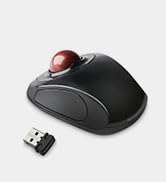
The Kensington Orbit Wireless Trackball with Scroll Ring combines dual wireless connectivity (2.4 GHz and Bluetooth) secured by 128-bit AES encryption, a patented scroll ring for smooth navigation, and four adjustable DPI settings for tailored cursor control. Its ambidextrous ergonomic design reduces wrist strain, while customizable buttons via KensingtonKonnect software enhance productivity. Compatible with Mac and PC, it offers up to 16.5 months of battery life powered by included AA batteries, making it a durable, versatile input device favored by professionals seeking comfort and efficiency.










| ASIN | B09D3RNRJQ |
| Average Battery Life (in hours) | 16.5 months |
| Batteries | 2 AA batteries required. (included) |
| Best Sellers Rank | #2 in Computer Trackballs |
| Brand | Kensington |
| Color | Black-Grey |
| Customer Reviews | 4.3 4.3 out of 5 stars (1,150) |
| Date First Available | August 19, 2021 |
| Hardware Platform | PC |
| Item Dimensions LxWxH | 5.46 x 4.51 x 1.85 inches |
| Item Weight | 5.6 ounces |
| Item model number | K72675WW |
| Manufacturer | Kensington |
| Operating System | macOS, Windows |
| Power Source | Battery Powered |
| Product Dimensions | 5.46 x 4.51 x 1.85 inches |
| Series | Orbit with Scroll Ring |
A**S
Takes some getting used to, but now I love it
I've been using this for three years and it works great. I use a laptop and work remotely, so I literally tote it around and take it out almost everyday. I use the trackball because I hate trackpads, even the Macbook Pro pad. A mouse is fine, but it doesn't work on an uneven surface. Durability: The only durability issue I've had is with the little rubber feet on the bottom. I re-glued them (E6000 Premium adhesive works) about two years in. Otherwise, it never acts up. I also keep mine in a general purpose case, so it isn't rattling around in my bag. Mouse Movement: Ball movement is smooth. I think it's much smoother than the Logitech M570 that I used before. It is important to keep it clean. Snacking on slightly greasy food with my right (mouse) hand will cause it to feel janky. Wiping clean usually solves the problem. The ball pops out easily for cleaning, and the little contact points will get gunked up, so I clean those regularly too. The scroll wheel works fine too. It felt a little "loose" at first, but I don't notice it anymore, and I use it constantly. Accuracy: A trackball isn't quite as accurate as a mouse, but I haven't used a mouse in so long that I don't really notice it. I found a "speed" setting on my computer that lets me move quickly across the screen but let's me land with some precision. I doubt I would use this for precision gaming or graphic design, but I can fit the cursor between two characters with no trouble. Weight: The Orbit weighs 187 grams with a battery, so it feels light but not cheap. More importantly, the ball itself has a decent heft. I would rather it was a little heavier and had a little more inertia (like a Missile Command trackball), but it's fine. Fit: When I first got this, I thought it was way worse than my M570. The M570 is very natural, scrolling with your thumb and clicking (and using the scroll wheel) with the index and middle finger. The way I use the Orbit, I scroll with my index and middle finger, left click with my thumb, use the scroll wheel and right click with my ring finger on my right hand. This felt really unnatural, almost painful, at first. I was writing quite a bit in SQL and using Excel, so quickly navigating was important to me. So I stuck my Orbit in a drawer for a few months and basically thought it was a failure. But I pulled it out a few months later when I was without a trackball, and after a few weeks, it felt totally natural. Now it's all I use. I think a weird trick that helps is that I roll it with my fingers and then barely lift them off the ball when I go to click. Clicking with my thumb while my fingers touch the ball almost always wiggles things around too much. Connectivity: I use my Orbit with my Macbook Pro and just pair via the built in bluetooth. Before that, I used it with a Windows notebook for a few months without trouble. I never really have to fuss with it. I switch it on and it works right away. Battery Life: I use this pretty intensely everyday, but I probably only change the batteries a few times a year. I don't keep track, but I'm pretty sure it's at least three months in between changes. And I don't have to repair or fuss with it after battery changes. In summary, I this is my main input device and I'm very happy with it. It does everything I want and causes very few problems.
I**N
I use it with Logitech right-hand tracking ball mouse to rest my right hand: Pros & Cons
I am right-handed and for years have used, and enjoyed, the Logitech (now called "Logi") right-hand tracking ball mouse, which unfortunately the company does not make a left-hand version of. Though right handed, my right thumb has begun to hurt from overuse of the right-handed mouse, so I searched hard for a left-hand option so I can use it for a while (either alone or shifting from one mouse to another). After trying a regular "ambidextrous" mouse without a tracking ball, which I returned because it was hard on the wrist, I ordered this Kensington tracking ball mouse which was advertised to be good for (1) ambidextrous (i.e. left and/or right-hand) use, and, (2) large hands (incidentally, "large" is defined as having greater than 7.5" length from the tip of the middle finger to the start of one's wrist; "medium" is 6.5" to 7.5", and "small" is below that). My length is 8". Here's my experience: Pro: I prefer the scroll wheel on the Kensington (which surrounds the track ball) to the scroll wheel on the Logitech (Logi) (which is located on top of the mouse) because it's easier on the hand to rotate the scroll wheel clockwise and counterclockwise on the Kensington mouse than use one's index finger to scroll up and down with the Logi mouse. This scroll wheel feature alone convinced me to keep the Kensington. Pro: As long as you have space on your workspace surface, and have the extra USB port or use the blue tooth function on the Kensington mouse, you can use two computer "mice" simultaneously. I have done so and it's easy. One's computer/laptop simply recognizes whichever mouse you use first, then switches to the other mouse after you stop using the one you're using and start using the other mouse. Pro: It's pretty. I got the red-colored tracking ball and it contrasts positively against the blue-colored tracking ball of my Logitech right-handed tracking ball mouse. Pro: I'm right-handed, so there are cognitive/neurological/brain benefits to using a left-handed mouse (exclusively or in tandem with a right-handed mouse). It's supposed to help prevent Alzheimer's disease, plus it's a lot of fun using my left hand. Pro: Since the Kensington is "ambidextrous" in design, I can use this mouse with my right-hand if I wish, which still would somewhat help alleviate my right-hand thumb pain because the ergonomics of the Kensington are different than the ergonomics of the Logitech tracking ball mouse. But I prefer to use the Kensington fully with my left hand to rest my right thumb and hand. Con (which may be a Pro): The tracking ball is a bit stiffer on the Kensington than the Logi, but (1) that may loosen up over time and (2) that may be an asset (and intentional by Kensington) to prevent accidentally moving the tracking ball on the Kensington, which unlike the Logitech mouse, takes up the top of the mouse instead of being located on the left side of the mouse as is the case for the Logitech tracking ball mouse. Still, I would have loved the tracking ball more if it were just a tad bit smoother/easier to roll. Then again, perhaps my Kensington's tracking ball is a bit stiffer than another tracking ball on the same model mouse: i.e. that may be a problem specific to my "mouse" than the a problem with the design feature itself. But again, it's not overly stiff. It still is easy enough to roll the tracking ball. Con (which has a Pro side): It takes up a bit more space (it's wider) than the Logitech, though this Kensington tracking mouse model is smaller than other Kensington models. Not the worse "bigness", but I cannott use both "mice"/"mouses" (?) at the same time unless I use it at my Varidesk Pro Plus 36 standing desk, which has two mouse pad areas on the left and right of the lower typing level. Due to its lower-sitting size and shape, the Kensington tracking ball mouse is also a bit harder to pick up and move around because it lays flatter and one has less vertical surface to grab onto. But this is not a big problem, plus it may make the Kensington a bit more stable (i.e. harder to topple over). Con (but may be due to newness of use): I did experience some weirdness initially in being unable to "copy" text in order to "paste" it later (the scroll function just froze after rolling down a few sentences) but that may have been due to other laptop factors and not the mouse itself or may have been due to my timing in using the mouse. "Time will tell" because I've only had the mouse for a week, but this perceived problem did not occur enough or persist enough to cause me alarm. 99.5% of the time the scroll wheel function has worked well in copying and pasting. Con (which has a Pro side or logical reason why): It's a bit slower to use the Kensington mouse than the right-handed Logitech, but that may be due to (1) the fact that I'm right-handed, so naturally can use my right-hand better with a right-hand mouse, and, (2) I need more time to get used to the ambidextrous Kensington tracking ball mouse. However, let me repeat, that the Kensington's mouse is easier and faster to use than the Logitech's scroll wheel. Or (3) perhaps the Kensington is a bit slower to use, but it is not annoyingly slower to use. Bottom line: Thus far, after only a week of use, I am happy with this Kensington tracking ball mouse even though I probably would have purchased a left-handed Logitech tracking ball mouse if such a Logitech mouse existed. Then again, maybe not because the scroll wheel on the Kensington is superior to the scroll wheel on the Logitech: it is much easier on the hand to use and faster scrolling up and down (and does not involve the use of one's thumb, so I can still use it with my right-hand that has right-thumb pain). The mouse quality seems pretty good: as good as the Logitech's quality. The weight of both products is similar.
M**V
Needed a trackball or trackpad mouse for my racing simulator. Was annoyed at using a normal mouse as I had limited room on my keyboard stand. Looked in to trackpads but wasn't practical as I'm using a triple monitor rig and don't want to be swiping over and over to get across the screen. Decided to give this track ball a try and wow. Absolutely perfect for my use and an amazing product. Good materials, sensitive settings so you're not bothered trying to select something and having the mouse jump around, ergonomic and very comfortable to use. Love the scroll wheel, and the placement of the buttons are perfectly distanced from the ball it self. I have a moderately normal to large size hand so for me it's a perfect size. Didn't expect it to be this big of a product but then again I had no idea what to expect when purchasing and now after having it for a month, I can safely say I'm very happy with the size and the product overall. 100% would recommend to anyone and especially those with racing rigs, this is the best option you'll ever find. I do wish it was around $50, found it to be a little pricy but then again, everything nowadays is. And for the quality you receive, you're definitely not complaining about the price, just in the grand scheme of things, it would be nice if it was a bit cheaper. Overall 10/10
G**A
Works perfect just as pictured and described
O**.
Work great and not the highest spec but that not what its for. I have a gaming mouse for that purpose. this allows my wrist to rest.
H**G
I bought this track ball in India. The left click button stopped working in 6 months of use. When I contacted the support, they told that even though warranty is valid, they do not ship replacement outside UK. If they sell outside UK then why not honour warranty in same place?
C**A
Ok, I am a certifiable trackball addict who has purchased >5 trackballs over the past 5 years and still use them regularly. For this brand (Kensington) specifically, I can say that it is of higher quality than Logitech and Elecom. My Logitech MX Ergo's "soft-touch" surface has started wearing out giving it a disgusting mouldy appearance; meanwhile, the newer Logitech M575 didn't even last a year and now the scroll-wheel is broken. I also bought an Elecom Deft Pro and EX-G Pro, both of which don't work anymore, not sure why. I put in fresh batteries but the ball simply doesn't track. By contrast, I bought this Orbit Wireless with scroll-ring because in 2020, I bought the wired version, and 3 years later, it still works. With that vote of confidence, I purchased this wireless model and have been using it happily. The scroll-ring is an excellent feature that perfectly replaces a scroll-wheel in a more conventional mouse or thumb-ball, and allows you even to click, hold, and scroll down, unlike models like the Elecom Deft Pro/Huge where there is a conventional scroll-wheel that has to be thumb-operated, making it unusable simultaneously with the LMB. I have had no connection issues ever with this; for some reason this device has BT 5.0 despite being advertised as 3.0. Buy with confidence (as long as you're ok with using a "finger-ball" of course)!
ترست بايلوت
منذ شهر
منذ 3 أسابيع