Buy anything from 5,000+ international stores. One checkout price. No surprise fees. Join 2M+ shoppers on Desertcart.
Desertcart purchases this item on your behalf and handles shipping, customs, and support to OMAN.
🎨 Elevate your art game wirelessly — create anywhere, create flawlessly!
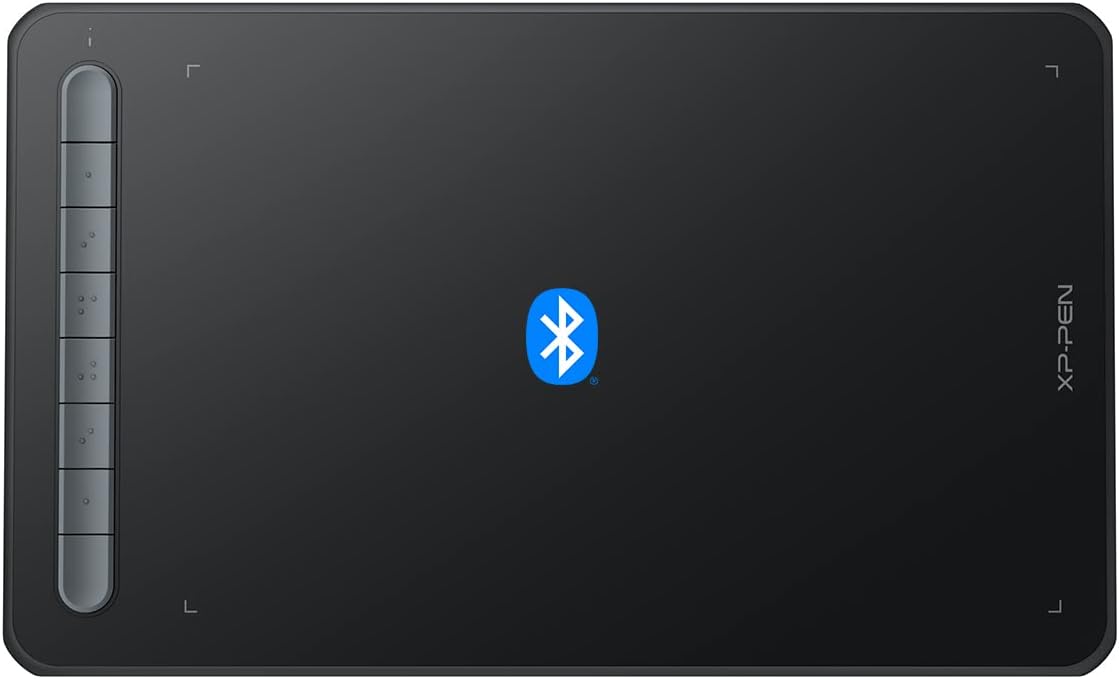
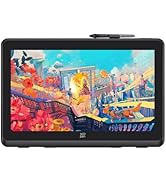
The XP-Pen Deco MW is a versatile 8x5 inch Bluetooth 5.0 wireless drawing tablet featuring the battery-free X3-Smart-Chip stylus with 8192 pressure sensitivity levels and 60-degree tilt support. It includes 8 customizable shortcut keys for enhanced productivity and offers broad compatibility across Windows, Mac, Linux, Chrome OS, and Android platforms. Designed for professionals and creatives, it supports major art software and comes with all necessary accessories and bonus creative software to jumpstart your digital artistry.


| ASIN | B09Z2B6MTF |
| Active Surface Area | 8 inches x 5 inches |
| Additional Features | Online Education,Digital Drawing,Professional Design, Video Edition |
| Best Sellers Rank | #75 in Computer Graphics Tablets |
| Brand | XP-PEN |
| Built-In Media | 1x XP-PEN Deco MW Graphics Drawing Tablet, 1x Dongle, 1x USB A to USB-C Cable, 1x X3 Elite Stylus, 1x USB A to USB-C OTG Adapter, 1x USB A to Micro USB OTG Adapter, 10x Pen Nibs, 1x User Manual |
| Color | Black |
| Compatible Devices | Windows, Mac, Chrome OS, Linux , Android |
| Connectivity Technology | Bluetooth |
| Customer Reviews | 4.3 out of 5 stars 158 Reviews |
| Item Dimensions L x W | 10.22"L x 6.21"W |
| Manufacturer | XP-PEN |
| Mfr Part Number | Deco MW |
| Model Name | Deco MW |
| Model Number | Deco MW |
| Native Resolution | 1920x1080 |
| Operating System | Windows 7/8/10/11, Mac OS X 10.10 (or later), Android 6.0 (or later), Chrome OS 88 (or later) and Linux Operating System Windows 7/8/10/11, Mac OS X 10.10 (or later), Android 6.0 (or later), Chrome OS 88 (or later) and Linux See more |
| Pressure Sensitivity | 8192 Levels |
| Screen Size | 8 Inches |
| Special Feature | Online Education,Digital Drawing,Professional Design, Video Edition |
| Specific Uses For Product | Drawing, Online Teching, Learn, Work |
| Target Audience | Student, Teacher |
B**E
It's a nice little tablet
I have used Photoshop on Walcom tablets for years. I started doing video editing, and I found that I needed a little more control and wanted something with quick keys. This little guy is great. The Bluetooth is a huge plus. I can just put the tablet away when not in use, and when I need it, it's ready to go! The quick keys work well on my M3 MacBook Pro and make editing the videos much quicker. A couple of things, though: 1. You must have the software running for it to work. Especially if you want screen swapping and quick keys. 2. I needed to adjust the sensitivity, out of the box it was set a bit to "Hard" for my taste. 3. Read the instructions to pair; it's not as straightforward as I thought it would be. But it does take the accidentally unsparing out of the equation. Overall, I would purchase XP Pen tablets again if I need another one or an upgrade.
H**E
Good, but I returned it.
I recently got a new tablet and am trying to learn Nomad Sculpt. My old XP-PEN G640S has a failing Micro USB connector, so I decided it was time for an update, and of course looked to XPPen. I really like that this tablet has Bluetooth connectivity, but there's a nuance that XPPen doesn't tell you: If you use this tablet with an Android device, which my new tablet is, you are restricted to running this tablet in portrait mode. Yes, you can somewhat work around this by turning your device and this tablet on their sides. But! I'm left handed and can't have the tablet buttons on the left, which is where they are if you turn the tablet and device on their sides for landscape mode work. I wish XPPen was up-front with this nuance; I never would've bought it as a result. I was able to return this, but I again, it would've helped to know this before buying. I even emailed XPPen for help, and they confirmed this tablet's orientation can only be changed and saved on a PC. Before returning, I did very lightly try drawing on this in portrait mode, and just as with my last two XPPen tablets, it worked fine. If things had worked out and I had kept this tablet, I would've gladly given it five stars.
A**R
Drawing tool
Daughter says it’s fun and works well.
E**K
Works in Linux and easy to set up!
I couldn't be happier with this purchase. Arrived in a couple days. Fully charged. I didn't even have to download drivers for the tablet to work in Arch Linux. I was in Krita and drawing in just a few minutes! Keep in mind you'll need the drivers and software if you want to change the shortcut buttons on the tablet. 100% satisfied. :D
J**M
Not a good alternative for note taking.
Great for paint. Not so good for note taking. Probably the technology is not there yet. Wont work with One Note in your iPhone'.
A**Z
Best bang for your buck.
Literally the best drawing tablet I’ve ever gotten. I would go as far the precision is just as smooth as Wacom cintiq if not better. I got the Wireless version and I’m absolutely happy there is no delay whatsoever if there is I don’t notice it at all. I wish they included an art glove like they normally do in almost all of their products but oh well.
M**Y
Hardware Is Solid, But Software Is Lacking
First off, I ordered the Deco MW and use Windows 11. It's great out of the box! It's lightweight, has a long battery life, has a generous amount of re-programmable buttons, and it can directly connect to Bluetooth without using the receiver. Even before driver updates and installing the Pentablet App it still worked right out of the box as a basic drawing tablet. Though, after installing everything I realized how much more functionality I wanted, mainly with the Pentablet Application itself. As someone who takes digital notes, I often use a lot of shortcuts. Commands such as Panning, Undo, and Redo - which are 2 input commands on a specific app I use - are easily configurable in Pentablet. Unfortunately, the same cannot be said for 3 input commands, and actions that require you to hold the button to repeat the command multiple times. Trying to reprogram a button to take something like "ALT + W + 1" results in "ALT + W, 1" which is not the same. Additionally, reprogramming a button to zoom in (CTRL + SCROLL UP) didn't work as intended. When I naturally held down my zoom button I expected it to continue zooming, instead it only zoomed in once and I had to press it repetitively to get what I wanted. The lack of options didn't end there. I'm familiar with using the mouse, so I prefer the Mouse mode since it uses relative coordinates and I can drag the cursor to the area I want, like how you lift the mouse and reposition it to move the cursor further when you run out of space. Unfortunately, mouse mode disables one of the most important features, Pen/Erase. The ability to toggle between Pen and Erase on the same button is essential and frees up one more button on the digital pen. I wish you can manually set a button to toggle between two actions, but that's another feature left out of the software. If you want the Pen/Erase functionality, you have to get used to Windows Ink's absolute coordinates which feels weird to me. Oddly enough, even with all these flaws it still works great for digital note taking. Sure you can't assign an action that uses 3 commands to a button, but you can simply drag the cursor and press that action on the screen. If you're dead set on mouse mode, simply assign each button on the pen to Pen and Erase. Every issue has a solution, albeit slightly inconvenient.
F**R
Teacher Use
Use this on my Promethean board and it works so well as I walk around the room. I’m a HS math teacher and it keeps the students on their toes and engaged because I will randomly just sit next to an empty chair at a table group and write on the board. Love it!
P**A
Great value item
Working fine
I**N
Light weight and portable. Very responsive on Windows but no tilt. Needs cable for Android devices.
PROS: + Very light-weight, compact and portable tablet. You can easily throw it in your backpack and take it on the go. + Good craftsmanship. No creaky plastic or uneven surface. The tablet is well-made and feels durable. It has a fairly attractive design as well. + Drawing on the tablet feels pretty good. The tablet has a semi-mat finish (similar to Wacom tablets) so you do not have the overly-smooth sensation that you get when using an Apple pencil on the glass screen of an iPad. The drawing area is a decent size: 8 in x 5in. The pen is comfortable to handle although a bit more weight would have been nicer. + Fast, problem-free Bluetooth pairing on Windows whether you use their included dongle or your own BT receiver. Note that with the latter, there is an additional button (the top one) press needed to start the pairing mode. You do not need to do that when you use their own dongle. + Very responsive on Windows. I tried it in Sketchbook and Photoshop and there is no lag when drawing. Pressure sensitivity works very well but only after I turned on Windows Ink in Pen and Windows Ink settings + The pen's side buttons and the 8 tablet shortcut keys are very practical out of the box and you can even customize them with the downloadable driver. + Downloadable driver (from the XP-Pen website) is very useful in providing additional customization for the work area, pressure control, and shortcut keys. + Pressure and tilt work great on Android. I tried the tablet with my Samsung A51 in Sketchbook + Comes with 11 spare nibs and a nib extractor as well as two USB adapters CONS: - On Android, you can only use the tablet with a USB-C to USB-C cable. Sadly BT does not work. The box includes a USB-C to USB-A cable with a USB-A to USB-C and USB-A to Micro-USB adapters but the adapters only work if plugged into your phone without a case. With a case on, it does not plug in deep enough. - While the pressure and tilt work great in Android, moving the cursor around is slow and clunky. - Tilt does not seem to work in Windows but it is probably more of an issue with the OS than with the tablet since it works perfectly in Android Overall, I'm quite enjoying using this tablet. I have an Intuos 3 and while it is an amazing device it is starting to show its age -- no BT capability -- and feels big and cumbersome compared to how compact and light this XP-PEN tablet is. I prefer the heftier more comfortable stylus of the Wacom but this one is not bad either. At around $110 with the current coupon, this tablet is a fairly affordable way for an artist to get into digital illustration before committing to more advanced devices. Even for professionals who already own a better tablet, this one would make for a great secondary tablet to use on the go.
K**N
Wireless drawing tablet, 3 ways to connect, cannot use as touchpad
The XP Pen Deco MW is my first drawing tablet from XP Pen. I ordered this mainly for its wireless capability. It allows for a cleaner setup and it's easy to move and position on the desk. I've been using this tablet for a few months. I use it mainly for rough sketching and writing notes on the computer. The programs I've used it most with are Microsoft Whiteboard, Krita, Sketchbook, and FireAlpaca. I also use it for non-drawing software and it works fine. I was disappointed in the beginning when I found out I could not use it as a touchpad. There is no touch support like with the Wacom tablets, which would've been nice for touch gestures like pinch to zoom in/out. In the beginning, I also had a problem with this tablet where my hard presses would register as a click and hold. So when applying pressure for darker lines, the strokes would disappear. It was annoying. I'm not sure when it stopped doing that but now it works fine. I'm using this tablet on Windows 11. Pen pressure works properly. I have the drivers installed and keep the Pentablet software open when using this tablet. It's nice having the 8 hotkeys. It’s more than I had on my Wacom tablet. I still use the keyboard since I use a lot of shortcuts. The 8 hotkeys can be programmed in the XP Pen Pentablet software, which I downloaded from their website. The software is fairly intuitive to use. Note that the mappings are not saved to the tablet, and you will need to have the software open to use your custom mappings. Also, when I first set it up, the mappings reset when I used the tablet in a different mode- I had already mapped the hotkeys when the tablet was connected wired/on receiver and had to remap then when I switched to Bluetooth connection. What I like most about the software is that I can switch between a specific monitor or all monitors when choosing which screen the tablet will work with. Another thing is you have save different hotkey mappings for specific applications. When that application is focused, the configuration of the hotkeys will automatically change to the one set for that application. This is very useful for switching between programs with different shortcuts. The software is useful for other things as well such as calibration, pen pressure adjustments, and viewing the tablet's battery charge. The tablet and pen themselves feel good to use. Both have a plastic build. The drawing tablet's surface feels smooth and makes it sound like you're drawing on paper. The pen is comfortable to hold. There are two easy to reach buttons on the side of the pen which you can program the functions of using the software. The pen has a flat edge so it won't be rolling around on your desk. It would've been nice to have a pen holder/pen loop on this tablet, though. It's very easy to lose the pen without one. This set comes with some adapters to use the cable with a USB-C or micro USB device. I have tried the Deco MW on my Samsung phone, connected with the receiver or wired. Something to note, it doesn't not work properly if connected via Bluetooth to my Samsung phone- the drawing tablet thinks its in portrait even though my phone is set to landscape mode. Also, note that the Deco MW doesn't work with iOS devices. I have tried on the M1 iPad Pro. It will connect but I cannot use it as a cursor or pen tablet.
J**.
Very professional!
What a quality product! The item advertise itself as being made for beginners and beginner friendly designs and all that, but this is clearly a product with professional features. I work in graphic design and this is such a pleasant little surprise to be working with. To start, it's got 3 different connection methods to the PC and 2 connection methods to the cell phone. It just ticks off some boxes of a quality product with intricate designs. You can either connect through a USB cable that came with, a Bluetooth receiver that came with, and a 3rd method which connects directly through Bluetooth without the need of a receiver. I, of course, went directly after the 3rd method to check out how easy it is to connect. And my windows laptop picked it up immediate, no weird menus to navigate through. I then opened up both Coreldraw and Photoshop, two software that I recently worked with. The drawing pad is very responsive in both. The stylus feels very smooth and easy to control. The shortcuts on the drawing pad are very interesting, with a shortcut button for saving as well. The stylus has two buttons on the side that basically functions as the left and right clicks of the mouse. The battery life is really good, at full charge it lasts longer than an 8 hour work day before I need to charge it again, and you can use it while charging with the USB connection. You never actually have to care about the battery if you are connected through the USB. The design is very sleek, hand feel is very professional, the grip and friction are just right for colouring and shading. I recommend this and I will definitely get another one with a different color if mine ever breaks.
A**P
A quality product that brings drawing tablets into a stiff competition
It’s one of the best releases on drawing device tablets I’ve seen so far for this year. It’s very light and portable. This tablet can be considered as a medium sized tablet but drawing pad’s work area is remarkably much wider having a width of 8 in (20.32cm) X height of 5 in (12.7cm) while the tablet’s actual dimension is 10 ¼ in (26.035cm) X 6 ¼ in (15.875cm); it’s even convenient for a small laptop that you can actually place on top of its keyboard. In addition, the stylus pen has better tilt control (60 °) and pressure points than its previous releases (over 8,000 levels of pressure sensitivity); the more you press the darker/thicker the line goes. And another great feature is it can be connected two (2) ways; either via Bluetooth connection or by USB cable (both Bluetooth dongle and cable are included in the package). The drawing pad can be used/applied using a laptop or by a mobile device – although it can be used on Android & iOS some functions may not work with iOS. It works with wide variety of platforms and for PC laptops it works with Windows 10 or later. The product packaging comes with different USB adapters in able to connect (USB micro & USB C) to any required interface. It also comes with several sets of nib (11 pcs) as a replacement as needed. With the use of the Bluetooth, the tablet has an optional button to turn power off (side button) – but it will remain ON when it’s connected thru cable. Also have an indicator light that lets you know when you’re out of the work area as well. The shortcut keys can be customized in settings for both tablet and the stylus pen. Overall, this is drawing tablet works great. I recommend this product especially to those who needs tools for demo/presenting/teaching online as this is one great device that provides effective visual to the audience or can be a tool to any graphic applications due to its wide compatibility. And with the current price offering, it’s surprisingly low for this type of quality product –seriously very inexpensive (than some of the other stuff out there). So if you’re still looking for a tablet like this, better grab it while you can.
Trustpilot
3 weeks ago
1 week ago