
قم بتنزيل التطبيق


معلومات عنا
حقوق الطبع والنشر © 2024 Desertcart Holdings Limited
قم بتنزيل التطبيق
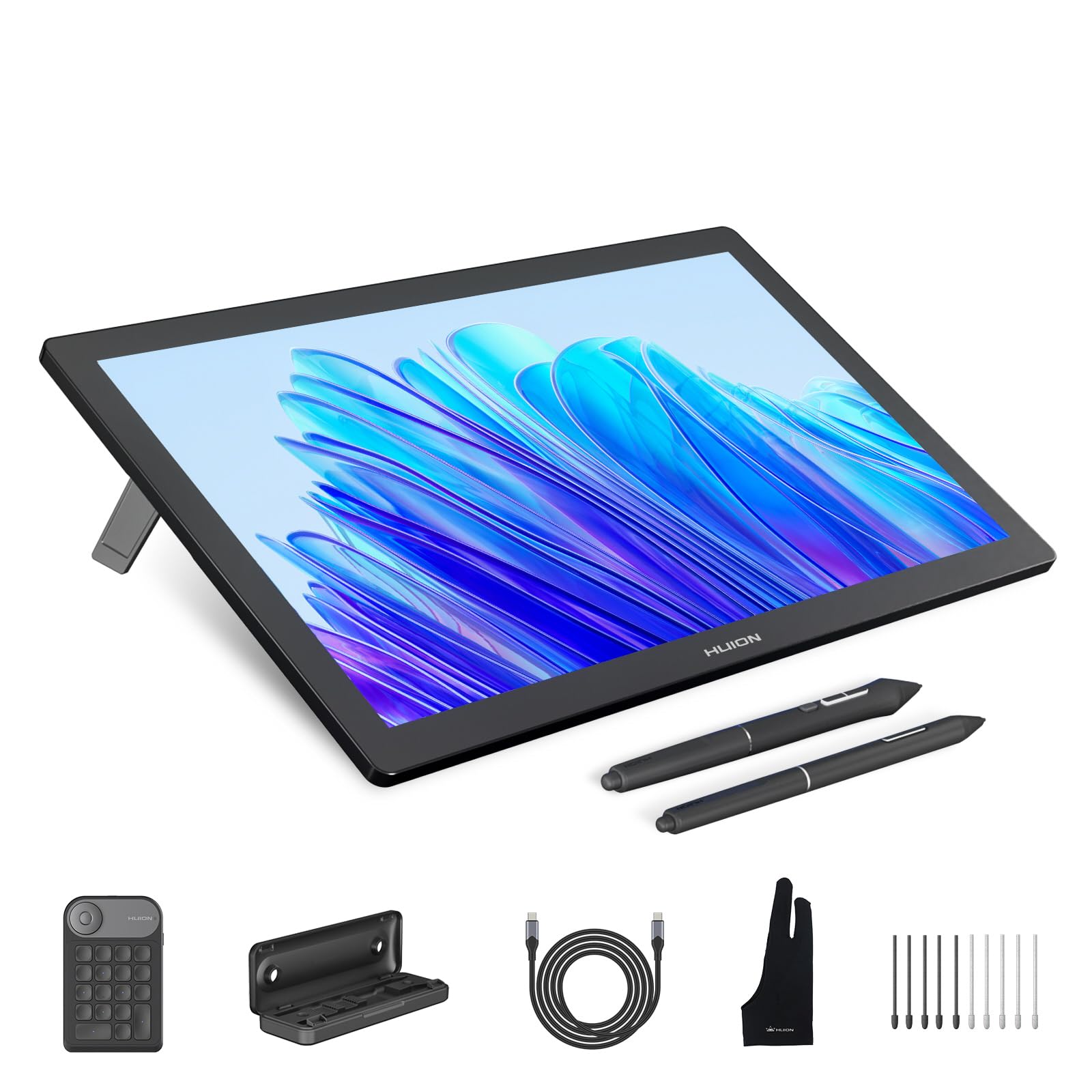
🎨 Elevate Your Artistry with 4K Precision & Pro-Level Control
The HUION KAMVAS Pro 19 is a professional-grade 18.4-inch 4K UHD drawing tablet featuring 96% Adobe RGB color accuracy and 1.07 billion colors for stunning visuals. Equipped with the advanced PenTech 4.0 stylus offering 16,384 pressure levels and tilt support, it delivers exceptional precision and comfort. Its multi-touch functionality, Bluetooth programmable keypad with dial, and lightweight aluminum design make it a versatile, portable tool compatible with major OS and creative software, ideal for artists and designers seeking top-tier performance.


| ASIN | B0CPF3KWS2 |
| Best Sellers Rank | #35,951 in Computers ( See Top 100 in Computers ) #125 in Graphic Tablets |
| Country of origin | China |
| Item model number | GT1902 |
| Manufacturer | ShenZhen Huion Animation Technology Co., LTD |
| Product Dimensions | 44.88 x 27.23 x 0.25 cm; 4 kg |
A**R
Brilliant piece of gear. I am very happy with my decision to upgrade from the kamvas pro 24 2.5k to the kamvas pro 19 4K the drawing experience is better and I prefer the 19 inch to 24 inch display. The difference in the the new pens is noticeable.
K**E
I love it so much. As someone who used an iPad for years, I really wanted to get a drawing tablet. I tried one with buttons but it was so hard for me to use. This one is amazing and I love it so much! The colours look so vibrant on it and it’s easy to use. I found it hard to set up but it was pretty easy to use once you had it set up!
T**.
It's super nice - easy on my wrists compared to smaller types of drawing tablet and I don't have to squint or hunch over to work. Sometimes I forget about the touchscreen aspect and spook myself accidentally. Easy to set up out of the box: plug it in, double check you have all your cables in the right spots and then go to the website and get the new driver (& user manuals, if you're so inclined). That's all you have to do. It took me longer to crawl under the desk and plug it in than to install, but, to be fair, this is not my first Huion tablet so I was basically speed running off to test (play around) in my art programs as soon as I had workspaces defined. The cables are kinda short so keep that in mind when finding a spot in your workspace. For me, it's not an issue - I got some extenders, which I'd done with my older Huion, too, and haven't had an issue with either. Plus this tablet has the vesa mount so it's super flexible in adjusting for workspaces and, while it's big, it's not comically huge. I can move it where I need it easily on the arm. Also: charge your minidial out of the box. You can start that while you set up the Bluetooth connection, and then let it sit and charge.
E**A
The cables are awful, they wear out quick and the only officially supported replacement you can't just order you have to email support, wait for them, and then pay 100 bucks + shipping!!! The driver software also sucks. Hardly works on Windows and straight up DOESN'T work on Linux using Wayland. On my windows computer I have had to reinstall the drivers multiple times and the tablet constantly forgets what screen it's supposed to be mapped to. The stand you can purchase with this is also AWFUL it is hard to adjust, wonnly, it's ugly, and once you have the stand attachment screwed to the back the tablet can no longer lay flat. The touch controls are meh, all the 3D software the tablet says it's compatible with like blender and Zbrush don't even have touch recognition only the pen input works. So don't think you can use those programs with multi touch controls. The display is also not great, the color accuracy is pretty good but the contrast is severely lacking and there's no decent mode to make it match other RGB monitors. After hours of tweaking colors still look different on this screen than my other monitors. The included remote is trash as well. It's too big to be held in one hand, none of the buttons are shaped differently or have any kind of bump on them to indicate which button you're touching so you have to lay it flat on your desk and memorize the layout. At that point just use your keyboard. Huge waste of money.
A**N
Update @ 05/02/2024 -- 4 Stars -- Keeping Huion, Returning Cintiq I really thought the Cintiq was going to be it, but it's not. Turns out after a couple days of use, the Cintiq Pro 17 has more quirks than the Huion Kamvas Pro 19. Also the Cintiq has deal-breakers which the Huion does not. Short Story: Huion has quirks that are annoying but easy to fix. It never requires me to restart my computer and rarely requires me to restart the Huion driver. Cintiq requires me to restart my computer for just about everything and WILL NOT let me use Toon Boom Harmony. RESULT Cintiq is going back... Update @ 04/30/2024 -- 4 Stars -- I got the Cintiq Pro 17 (compared) If you look at my previous updates, you'll see that I am mostly happy with the Huion Kamvas Pro 19 after ironing out all the quirks. For this update: What are you missing by keeping the Huion Kamvas Pro 19 over the Cintiq Pro 17? Kamvas Pro 19 PROs: - Save $1500 - Pen to screen toothiness feels better - Pen Pressure feels more natural (better) -- yep, I admit it. - Pen Responsiveness in Photoshop is WAY FASTER than Cintiq. - Pen Eraser on the back of the pen. - Very nice quality feel dual pen holder - 1" larger screen (not super noticeable but its there) - The display feels as quality to me as the Cintiq Pro 17 - Gestures work better, especially the 2-finger & 3-finger undo/redo gestures. - A dedicated keypad with a dial that you can actually use (unlike cintiq's silly grips) - Software Configuration for Pen Pressure Curve is MUCH BETTER than Cintiq. - Software Configuration for button mapping is a little better than Cintiq. Kamvas Pro 19 CONs: - You must force-close the Huion Software to get pen pressure in Concepts/Sketchbook Pro and other apps that rely on Windows Ink. (Photoshop works fine with the software) - Closing the Huion Software for Concepts or Sketchbook causes you to lose the custom functionality. - Sometimes when waking up the computer, the huion software forgets which screen it is controlling when you have multiple screens. Cintiq Pro 17 PROs: - You plug it in, install the drivers, done. No quirks, not a single one. - 120hz Cintiq Pro 17 CONs: - Price - Pen holder is a flimsy plastic thing that bolts to the side of your screen and gets in your way when you have the screen laying flat. - Pen holder has a top mount but you can't mount it because the usb-c and power cables won't let you, wow, really Wacom? - Ridiculous Gamer Style grips on the side that you cannot use when the screen is laying down. So all those buttons are useless. Whats worse is we have no keypad to use as an alternative. - Touch enable/disable button is behind the back, not easy to access like it is on the Kamvas. - Software Configuration for buttons and pen is different depending on whether you're using the "Wacom Center" or the "Wacom Tablet Properties" software. If you change settings in one, it is not properly reflected in the other and they can overwrite each other. Conclusion: All things considered, I am going to keep the Cintiq Pro 17 even though I like the Kamvas Pro 19 better. I feel that if Huion fixed their quirky "Windows Ink" issue, it would be a no-brainer as it is clearly the better device for less than half the price. But for me at the end of the day, I just don't want to bother fiddling with it, I just want it to work and forget about it. I also feel like if Huion were going to fix their quirky problems they would have already as these quirks have been part of their products for a long time. So it's not worth it for me to wait and hope. Update @ 04/28/2024 -- 4 Stars Okay, I've worked out some of the kinks and it's better but quirky. I uninstalled my wacom drivers and then reinstalled my huion drivers. This helped. I followed Huion's troubleshoot instructions to "repair" WinInk an WinTab. I followed Huion's troubleshoot instructions to enable WinTab for Photoshop. Now the Kamvas Pro 19 seems to be much more consistent, however, I still have 1 major issue. The issue is, pen pressure is only available for certain apps under different circumstances. I did a full analysis of all the conditions that seem to affect the pen pressure. The following table of conditions defines how to configure Huion to get various apps to work: NOTE 1: For Photoshop only -- the first time after your computer awakes, you must open the Huion app and enable then disable Windows Ink. If you don't do this, photoshop does not recognize the pen. I believe this must be kickstarting some process that reminds the huion driver that photoshop should use WinTab (guessing) NOTE 2: Sometimes the Huion Driver is running but does not appear in the windows tray. So to shut it off so you can use Concepts, you must force-kill from the windows Task Manager. NOTE 3: I have only laid out 3 apps below because every app I have tried, behaves like Photoshop, Concepts or Windows under the same conditions. I hope this helps some of you # Windows Ink Off Huion Driver is Running (active in windows tray) Huion App Window is Open Windows Ink = Off (Driver is set to use WinTab for photoshop) - Photoshop: Pen works well, lightning fast and the pressure is excellent. - Concepts App: Pen works well, but no pressure. - Windows: Clicking, dragging, everything works as it should. # Windows Ink On Huion Driver is Running (active in windows tray) Huion App Window is Open Windows Ink = On (Driver is set to use WinTab for photoshop) - Photoshop: Pen works well, lightning fast and the pressure is excellent. - Concepts App: Pen freezes intermittently, but no pressure. - Windows: Pen Freezes intermittently. Clicking, dragging, everything works as it should. # Driver Off Huion Driver is NOT Running (exited from windows tray) Huion App Window is NOT Open - Photoshop: Fail, nothing, pen does not work at all. - Concepts App: Pen works well, pressure is excellent - Windows: Clicking, dragging, is unreliable. After all this, why do I still give it 4 stars? I am flexible. The price is $1500 cheaper than the Cintiq 17 so I must adjust my expectations by $1500. This pen display works AMAZING when it works and it does work under every circumstance, it just needs some annoying tickling to get it to behave. Also, for my needs, I only need pen pressure for photoshop and Toon Boom Harmony, both work fine when the huion app is open. There is never a case for me that I need to switch to Concepts or Sketchbook, etc and need pen pressure. So I do not experience the need to kill the huion app within my workflow. So this is an annoyance but not a deal breaker. Having said all that, I have already ordered the Cintiq Pro 17 and if it performs as well as this Huion Kamvas Pro 19 but without the quirks, then I will be returning this Kamvas Pro 19. If the Cintiq Pro 17 has even 1 quirk, just one annoyance, then its not worth the extra $1500 for me. Update @ 04/26/2024 -- 3 Stars Somewhere between "All good things" and "Too good to be true" lies this Huion Kamvas Pro 19. It was great for 1 full day until I turned my computer off and then on the next day. The short version is: I am able to get this pen display to work fully for every situation I need. However, switching between photoshop and some other drawing app requires minutes of tweaking settings, restarting the huion driver, or even restarting my computer. Apparently some apps need "Windows Ink" and some apps hate Windows Ink. The feel is very good and when it does work, I'd say it "feels" better than my Cintiq Pro 24, but the hassle is not worth it. I want a smaller form-factor, so I am going to get the Cintiq Pro 17 and do a side by side comparison. I suspect I will be returning this Huion Kamvas Pro 19. It's too buggy / quirky. Original Review @ 04/24/2024 -- 5 Stars I have owned several Cintiqs, the older Cintiq 21, a the new Cintiq Pro 24 and my wife also has the Cintiq Pro 32 (both with Touch). My wife is a professional artist and I am a photographer and hobby-artist. I have also owned earlier-gen Huion Pen Displays and they were junk. The pen just felt terrible and the windows experience was unreliable. This Kamvas pro 19 is a whole different thing. Shockingly good. In my opinion this Huion Pro 19 (4k) is outstanding. I'm using it on Windows. The touch gestures are perfect and the pen pressure is really nice. Both pens are really nice, they feel premium. I like them as much as my Cintiq pens. The drawing feel is BETTER than my cintiq. I'm referring to that "paper" toothy feeling. The combination of nib and screen feels the best I have experienced. The included keypad is a really nice touch. It is fully programmable and while it is plasticky it works well and does not feel like it is going to break as long as you're not abusing it. PROs & CONs: - Pen Accuracy: - - Very accurate, spot on, even when tilted. You have to tilt very extreme before there is any misalignment. - Parallax: - - As good as any pen display I've tried, though not as good as an IPad or Surface Laptop Studio. - - I actually think the parallax is better on this Huion than the Cintiq. - Responsiveness: - - Most apps perform very very well. Photoshop (as usual) is the most sluggish, though this Huion is about the same as my Cintiq Pro 24 Touch. - Touch: - - In windows it is perfect. Though some apps suck at touch, but that's not the display's fault. - Palm Rejection: - - They provide a glove which works 100%. Though without the glove, I sometimes get little blips, but it is very easy to turn off touch (just like the cintiq) and I usually use the glove. - - A request to Huion, it would be nice if there was a pen-shortcut option to enable/disable touch. - Photoshop: - - Photoshop is the most sluggish of any drawing apps that I use. Depending on the brush type it can be really bad even though I have a fast CPU and GPU. i9-13900 & RTX4080. About the same as Cintiq. - Illustrator: - - Gestures in Illustrator are not to my liking, but I don't think this is the displays fault. Adobe is so archaic. Pen works excellent and is very very responsive. - Toon Boom Harmony: - - Works incredibly well on Windows. Gestures are perfect. Pen is lightning fast. Pressure feels good. - Adobe Animate: - - (only this one app!) I noticed the pen sometimes freezes for a moment and then continues. I have also experienced this with my Cintiq in some other apps. The solution in Windows, for both Cintiq and for the Huion, is to turn off "Enable Windows Ink" from the Huion Driver App. Its very easy to turn on and off, just a quick click. Note that disabling windows ink will disable pen pressure in some apps. I leave Windows Ink on all the time, I only turn it off for Adobe Animate.
ترست بايلوت
منذ شهرين
منذ شهرين