Desertcart purchases this item on your behalf and handles shipping, customs, and support to OMAN.
📱 One remote to rule them all — smart control, smarter living!
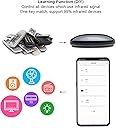
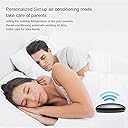
The FRANKEVER Smart IR Remote Controller is a compact, Wi-Fi-enabled infrared hub compatible with over 50,000 devices including TVs, ACs, and DVD players. It integrates seamlessly with Alexa, Google Assistant, and Siri for voice control, supports custom automation via the Smart Life app, and operates on 2 AA batteries with low standby power consumption. Designed for professional millennials seeking streamlined smart home control, it offers multi-directional IR coverage and easy setup without requiring a separate hub.

| ASIN | B07ZP5NQWF |
| Battery Types | Alkaline |
| Best Sellers Rank | #187,504 in Home Improvement ( See Top 100 in Home Improvement ) #302 in Home Automation Hubs & Controllers |
| Brand | FRANKEVER |
| Brand Name | FRANKEVER |
| Button Quantity | 20 |
| Colour | R4+sensor Cable |
| Compatible Devices | Air Conditioner, DVD/Blu-ray Player, Set Top Box, Television |
| Connectivity Technology | Infrared |
| Controller Type | Button Control |
| Country of Origin | USA |
| Customer Reviews | 4.1 out of 5 stars 649 Reviews |
| Item Type Name | remote |
| Item Weight Unit of Measure | 50 Grams |
| Manufacturer | smart |
| Manufacturer Part Number | FK-UFO-R4 |
| Max Number of Supported Devices | 1 |
| Maximum Number of Supported Devices | 1 |
| Maximum Range | 10 metres |
| Model Name | FK-UFO-R4 |
| Model Number | FK-UFO-R4 |
| Network Connectivity Technology | Infrared |
| Number of Batteries | 2 AA batteries required. |
| Number of Items | 1 |
| Number of Packs | 1 |
| Product Features | Infrared |
| Special Feature | Infrared |
| Unit Count | 1 Count |
H**D
Very good
Very good
A**X
“Alexa, turn on the Projector”
** Instructions for adding any button to an Alexa routine at the bottom of my review ** PROS - able to be added to Alexa routines - small and sleek - able to control devices spread all over the room - uses standard usb-c (cable included) - my devices were already in the database - can add buttons not in the database CONS - none, but it would be nice to add the device straight to the Alexa app, and control all functions straight from the routines menu, but I don’t think any IR device can do this yet. OVERVIEW WOW, this device is awesome, especially when you consider the price. I was surprised by how small the device is (I attached a size comparison with a pen). Setup was pretty easy, I just followed the instructions in the manual, and then connected the smart life skill to use the device with Alexa. MY USE CASE I have this controlling 3 devices: projector, TV, and soundbar. My goal in getting this was to easily transition between using my PS4 while sitting at my desk on my TV, to laying in bed on my projector, and vice versa. This worked out perfectly by using an Alexa routine (see attached video). I was a little worried that a device like this would only emit IR in one direction, similar to a remote, however, it was able to reach 3 devices on separate sides of the room. Amazing! I even pushed it behind my TV and it still works. INSTRUCTIONS TO ADD ANY BUTTON TO AN ALEXA ROUTINE I highly recommend you screenshot this section for later if you intend on using Alexa routines with this product. 1. Setup the device as shown in the manual 2. Add your device to the smart life app, most devices are already in their database, if it isn’t, choose the most similar device. 3. Once the device is added, open the remote for it. If there’s a button that you want that’s not included with the default remote, add a custom button. This will have you point your remote towards the device and hold the button to add, works perfectly. 4. Once all the buttons that you want are on the remote in the smart life app, then go to the smart tab in the smart life app and click on the tap-to-run menu. Here you’ll have to create a tap-to-run task for each function that you would like Alexa to receive. 5. Once you have all the tap-to-run tasks working within the smart life app, go to the Alexa app, and search for the smart life skill and connect it to your account. 6. In the Alexa app, go to the devices tab, click the “+” in the upper right hand corner, tap add device, then scroll to the bottom and tap other. This will pull in all the tap-to-run tasks into Alexa. Alexa will recognize them as scenes, therefore, you will find them in the scenes menu. 7. Now you’re ready to create your Alexa routine like normal and just add the appropriate scene to your routine. ** if you found this helpful please let me know by clicking ‘helpful’ **
L**R
Great upgrade for Harmony Hub.
Decided to pick one of these up for my bedroom TV. I've had a Logitech Harmony hub for my primary TV for quite a while. After getting this one, I set it up with the Smart Life app and was just blown away with how well it worked. It had my Hannspree TV in its database, so I didn't need any special programming to get that working. The only thing that it didn't have in the database was my Roku. But it was very easy to add it in. Not only does it have an IR blaster, it also has an IR receiver, which allows it to learn codes from an original device remote. With that, I was able to add all of the Roku functions that I need. After seeing up the devices, it is very easy to make up some smart routines to operate there TV and other items. And just after making the routine, it showed up in the Alexa app. The biggest issue that I have with the Logitech Harmony hub is that it doesn't seem possible to set a toggle switch for turning things on or off. They required 2 separate actions. Not true with this unit though. You can set it to turn on or off many items. The toggle worked out so well that I decided to set it up with one of my Echo Buttons. Now whenever I want to watch TV or turn it off, I just hit the big button and it does its thing. As for the controller itself, it's very nice. Compact and plain in appearance, it does a big job. It has a USB C plug and comes with a small USB cable, but no power supply. It has just one small button on it for putting it into pairing mode. Other than that, everything is done through changing settings in the SmartLife app.
T**R
Good after a slightly bumpy setup
Works well, though I did have a few issues getting it connected. I had to disable my 5Ghz radio on my router, so it was only 2.4, then it connected -- and then I turned 5G back on. That's an old trick that always seems to work.
A**R
It's worth it.
There's a bit of a learning curve when using the DIY templates in the Alexa app. However, if you have poor motor skills, as I do, it's well worth the time and effort.
Trustpilot
3 days ago
1 month ago