Desertcart purchases this item on your behalf and handles shipping, customs, and support to OMAN.
📼 Digitize your past, own your nostalgia!
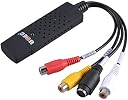
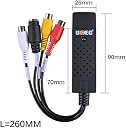
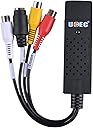
The UCEC USB 2.0 Video Audio Capture Card is a portable, lightweight adapter designed to convert VHS, VCR, and TV analog signals into digital format via USB 2.0. Compatible with a wide range of Windows operating systems (2000 through 10), it includes an AV adapter and TF card reader, making it a practical tool for preserving vintage media. While praised for portability and OBS compatibility, users should note the USB connection's delicacy and potential software limitations.


| ASIN | B00WSAWZ1M |
| Box Contents | AV Adapter, TF Card Reader |
| Brand | UCEC |
| Brand Name | UCEC |
| Customer Reviews | 4.0 out of 5 stars 1,715 Reviews |
| Hardware Interface | USB 2.0 |
| Included Components | AV Adapter, TF Card Reader |
| Manufacturer Part Number | UC_LR403_SML |
| Model Number | 4330186177 |
| Operating System | Vista,Win,Win 7,Win 8,Win Vista |
| Other Special Features of the Product | Lightweight, Portable |
| Platform | Windows |
| Special Feature | Lightweight, Portable |
| UPC | 711463110433 606989443229 |
| Unit Count | 1.0 Count |
A**I
Do not buy, it doesn’t work
This product doesn’t work.It is waste of money.Seller is not ready to replace faulty product. It converts all videos into black white. Also, this is imported from US,so warranty is not valid in India.
M**.
Works well with OBS but USB connection a bit flimsy
S/w not great so used OSB. Successfully copied a lot of old VHS videos to disc. The direct USB connection is delicate and transfer is easy interrupted. The converter would benefit from a short USB lead on its output side.
J**H
Works like as advertised
I was looking for a capture device to convert some really old Super 8 tapes from an ancient Sony Camera. For the price point I didn't expect much. I was actually looking at getting the much more expensive Elgato capture card but after reading some reviews on this product I decided to go with this. Everything worked right out of the box. I am using a Windows 11 PC and the USB Device was detected right away. I used OBS to capture my video. When I first started to use capture there was a very loud hum coming from the audio output. It was very easy to fix. Just add a Noise Suppression filter in OBS and it will go away. If you are looking for a cheap way to convert old VHS or Super 8 tapes this is perfect!
R**R
Cheap and Effective on Linux with ffmpeg
Product Details: The Color packaging was labeled as: Video DVR Model No.:DC60 A white sicker on the packaging says:: X00430RLND UCEC RCA to USB... Made in China-10-17 I am using this product on an ubuntu linux distrobution: The first thing I tried was to capture using vlc: Media -> Open Capture Device Video device name: /dev/video1 Audio device name: hw:1,0 Video standard: NTSC I eventually got this to work but I found it unreliable. (Your mileage may vary.) It was, however, a simple way to identify the audio and video device names. I prefer ffmpeg batch mode, so after, hours of trial and error, I decided on the below ffmpeg coomand: ffmpeg -f alsa -i hw:1,0 -acodec aac -ac 2 -f v4l2 -i /dev/video1 -vcodec libx264 -r 60 my_movie.mp4 Important: 1. replace hw:1,0 with your own linux alsa audio device specification. 2. replace /dev/video1 with your own video device name. The above will start recording when you enter the command. When done type Ctrl-C to finalize the output file and exit gracefully. note: The above does NOT enable you to watch the video while it is being recorded. I wasted a bunch of time before realizing that that was not necessary. note: alsa stands for Advanced Linux Sound Architecture note: v4l2 stands for Video for Linux 2 Linux will name the devices as they are plugged in. The video devices increment like: /dev/video0 /dev/video1 /dev/video2 ... The audio devices increment like: hw:0,0 hw:1,0 hw:2,0 ... ASSIDE: The audio device syntax is hw:cardNumber,deviceNumber (counting starts from zero) e.g. hw:0,0 means 1st card 1st device in card e.g. hw:1,0 means 2nd card 1st device in card (a complex card can have many devices but this has only 1) Suggestion: Use trial and error, making short recordings until you find ffmpeg settings that work. You will need to install ffmpeg and other requirements before you try this. (the usually linux stuff) e.g. sudo apt-get install ffmpeg e.g. sudo apt-get install v4l-utils ------ ------ Further Gory Details you probably do not care about ------ Other ways to identify the USB audio and video device designations -------- hint: Use /bin/ls to list devices before and after plugging in your card. (my example after plugging is below) ls -l /dev/v4l/by-id/* lrwxrwxrwx 1 root root 12 Dec 23 18:59 /dev/v4l/by-id/usb-Generic_HD_WebCam_200901010001-video-index0 -> ../../video0 lrwxrwxrwx 1 root root 12 Dec 24 02:36 /dev/v4l/by-id/usb-MACROSILICON_AV_TO_USB2.0_20200909-video-index0 -> ../../video1 ls -l /dev/snd/by-id/* lrwxrwxrwx 1 root root 12 Dec 24 02:36 /dev/snd/by-id/usb-MACROSILICON_AV_TO_USB2.0_20200909-02 -> ../controlC1 The above is a good way to find the name of your video device. As you can see above my MACROSILICON is currently the video1 device on my laptop. The audio designations are a bit trickier because they uaes alsa nomenclature. (alsa => Advanced Linux Sound Architecture) I used the arecord utilty to list audio devices both before and after install. arecord -l **** List of CAPTURE Hardware Devices **** card 0: PCH [HDA Intel PCH], device 0: ALC255 Analog [ALC255 Analog] Subdevices: 1/1 Subdevice #0: subdevice #0 card 1: MS210x [MS210x], device 0: USB Audio [USB Audio] Subdevices: 1/1 Subdevice #0: subdevice #0 Notice card 1: above, this showed up only after pluggin in the vido capture device into the usb port, so from that I can tell it is card 1: device 0: which gets the ffmpeg designation of: hw:1,0 You can get even more geeky information by experimenting with lsusb as follows: lsusb Running lsusb as above before and after plugging will help you identify the ID. (mine was 534d:0021) Once you have the ID you can dump verbose information about the device. lsusb -d 534d:0021 -v
P**L
Good solid inexpensive choice to copy those old camcorder videos
Overall a solid inexpensive product that works pretty well. It is hard to determine if the video resolution / quality is affected by the product - maybe a little but for the price I say this does work quite well. I agree with others that the software is 'clunky' but it does work and there is a LOT of options for output - so many that I had to research and try out to determine the best output options for me! There are MP2 and MP4 and several DVD output options (NTSC and PAL) and other various output options I did not mention. The MP2 option allowed for a number of output resolutions (horizon/vertical lines of resolution) while other options had the resolutions greyed out. I found that there could be problems with some formats playing in a DVD player for example - but I plan to use my Win laptop and all the formats I tried run fine on Win10. One thing is that I could not get MP2, MP4, or DVD FORMATS to run on my iPhone (wanted to stream to TV - loaded file to iCloud then to phone) maybe this can be done - by no luck yet. The included software did load and work the first time on a home win10 laptop - 64bit - i3 Intel processor 2.0 GHZ. Video stream/bitrates were fine with the standard defaults - but when I tried to change things - like increase bitrates I saw no real improvement in quality but the file sizes jumped up a lot (a LOT) and video jumping/skipping did occur - so I used the standard default with no skipping. Standard DVD equivalent resolution file sizes ran about 3 GB per hour so be prepared for big files! I have copied from Sony Hi8 and MiniDV with no issues. I used the RCA video and Svideo inputs and both worked fine. I did think Svideo was failing at first (no picture) but just needed to click a button in the software then a clear pic on my laptop to copy! Update: after a week of copying dozens of Hi8 videos from my Sony camcorder - I have some tips. I am getting really great quality copies by using the s-video cable and selecting MP-2 with a bitrate of 8000. This is a higher bitrate than standard settings but it results in very good copies. Your computer needs to handle this higher bitrate for this to work. Lower bitrates were resulting in bad video with lots of motion artifacts. Note that 8000 bitrate will need about 3.7 gig per hour of video.
P**.
Decent video quality.
The software is really not great but using the free OBS studio (excellent) solved that problem easily. The video quality was decent, not perfect but sufficient to save video8, Hi8, DV and even VHS to PC. Based on my first impression I would have given 5 stars. Unfortunately that unit stopped working properly after a few days. It does get quite hot during the transfers and perhaps the heat is affecting the reliability of the unit. If I had known ahead of time I would have put a small fan in front of the unit to cool it down... It is sad that this unit only worked for a few days as the results were acceptable. One has to realize that converting from a tape to digital will always introduce some deterioration of the video unless you can input directly to the PC through firewire if your PC has one... In summary this is a decent unit which produces very acceptable results. I believe I got a defective unit, otherwise it would have lasted much longer... For the price it is definitely worth a try. If you get a bad one, return and order a new one!
Trustpilot
2 weeks ago
3 weeks ago