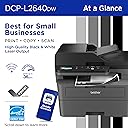
🖨️ Compact power, wireless freedom — print like a boss!
The Brother DCP-L2640DW is a compact, monochrome 3-in-1 laser printer designed for small businesses and home offices. It delivers professional-quality black & white prints at speeds up to 36 ppm, features a 50-page auto document feeder, and supports automatic duplex printing. With versatile connectivity options including dual-band wireless, Ethernet, and USB, plus a dedicated mobile app for remote management, it streamlines high-volume printing, scanning, and copying. Eco-friendly and cost-effective, it includes a toner subscription trial to keep you running without interruptions.


| ASIN | B0CPLFTPCV |
| Additional Printer functions | Copy, Scan |
| Best Sellers Rank | #314 in Office Products ( See Top 100 in Office Products ) #1 in Laser Computer Printers |
| Color Depth | 1 bpp |
| Compatible Cartridge | TN830, TN830XL |
| Compatible Devices | Laptops, PC, Smartphones, Tablets, iPhone |
| Control Method | App |
| Controller Type | Android |
| Customer Reviews | 4.3 4.3 out of 5 stars (2,931) |
| Date First Available | August 2, 2023 |
| Dual-sided printing | Yes |
| Duplex | Automatic |
| Hardware Interface | Ethernet, USB |
| Included Components | AC Power Cord, Drum Unit, Toner Cartridges |
| Initial page print time | 8.5 Seconds |
| Ink Color | Black |
| Item Weight | 25 pounds |
| Item model number | DCPL2640DW |
| Manufacturer | Brother |
| Max Copy Speed (Black & White) | 36 ppm |
| Max Input Sheet Capacity | 250 |
| Max copy resolution black-white | 1200 x 1200 dots_per_inch |
| Maximum Black and White Print Resolution | 1200 x 1200 Dots Per Inch |
| Maximum Media Size | 8.5 x 14 inch |
| Maximum copies per run | 50 |
| Model Series | DCP-L2640 |
| Number of Trays | 1 |
| Number of USB 2 Ports | 1 |
| Output sheet capacity | 120.0 |
| Print media | Envelopes, Labels, Paper (plain) |
| Printer Ink Type | Toner |
| Processor Count | 1 |
| Product Dimensions | 15.7 x 16.1 x 12.5 inches |
| Scanner Type | Flatbed, Sheetfed |
| Series Number | 2640 |
| Sheet Size | Up to 8.5 x 14 |
| Specific Uses For Product | Home, Office |
| Supported Media Sizes | Legal (8.5 x 14 inches) |
| Total Ethernet Ports | 1 |
| Total USB Ports | 1 |
| UPC | 012502672685 |
| Warranty Type | Limited |
| Wattage | 10.5 watts |
P**P
Works Great So Far! Reasonably Fast & Clear Printing - Convenient Wireless Connectivity
I have used Brother laser printers for years. I decided on this particular model, mostly because it offered just exactly what my small business and home office needs were. I have no use for a fax machine any more, so this printer and scanner was really all I wanted, and it seemed like a pretty reasonable value. I have tested it several times with various paper media. I print normal text documents, some with graphics, envelopes, and voucher checks regularly. This printer has handled everything really well so far. There was a bit of a learning curve with some odd sized envelopes, but I'm pretty sure my struggle was with the software I was using, not the printer. I did experience a couple of situations where the machine said there was a paper jam when using the front tray to print an envelope, but it was easily resolved. The quality and clarity of the print seems great to me. You can adjust the print density, toner ecology, etc. pretty easily. The machine itself has a heavy duty and durable feel to it, and I'm happy with how it has been working so far for me. WIRELESS CONNECTIVITY: I was reading other people's comments about having issues with this. I am going to share what I found worked best for me, and maybe that will be helpful for others. Since I have owned and used several Brother printers in the past, I've learned that getting the machine on my wireless network is easiest by simply using the machine's console push buttons. I know in the literature it says it should be discoverable by going through the steps outlined in the instructions after downloading their software. However, I've never had consistent luck with that process. I still download the software to make sure I have the right drivers and features loaded, but when it comes to getting the printer on my network, I just use the machine's console to find my router and then type in the password. It's a tiny bit tedious typing the password using the console buttons, but I've never had it not work for me. Honestly, seconds after doing that, the wireless printer was discoverable and available to all of my devices. I was able to print from my CPU, laptop, phone, tablet, etc. without any issues. I know that's not the only way of setting up the wireless functionality on these printers, but it's what I've learned causes the least amount of stress and frustration. I hope that's helpful. They provide details on how to accomplish this method in the accompanying literature that comes with the printer. At this point, I have no reason not to give this five stars. If something shoud change down the road, I'll be sure to update this review.
J**S
I didn't think I'd find a laser printer this high quality for such a low price
It's a bit large, but not too much so. Good value for the money. Nice design. Good print speed for $209 + tax. It's black and white, so color isn't a thing. I don't do much printing. I mainly use a printer to scan to save me trips to places that let me upload important documents such as my tax accountant. Toner cartridges don't dry up like the ink cartridges do for non-laser printers, so that makes the printing cost-effective. Things I liked: (1) It looks sharp. Looks are not relevant to the functionality, but it's nice to have a good-looking printer (see attached picture). (2) It scans quickly for the price. 3 pages in just seconds is not bad. (3) You can scan single pages by placing them printed side down on the glass under the lid and then use a Scan app from your PC to kick off the scan and save the document. (4) You can scan multiple pages at a time via the document feed. DO THIS FROM THE MOBILE APP. Trust me on that one. It works flawlessly. It shows the pages scanned right on your phone screen, and from there, you can decide what you want to do with them (email them, save to a file on the phone, etc.). Be sure the print is facing up when you place them (I apologize if I got this wrong - it's a 50/50 shot. You'll get it right quickly enough). (5) Toner cartridges are cost effective compared to color inks. If you need color ink, then this is not really helpful, but if your needs are simple, and black and white printing is good enough for you, this is an effective solution. The toner cartridges are significantly cheaper than the color ink. I did a quick check. One offer was 4 cartridges for about $70 USD. Not bad at all. Roughly 17.50 dollars for a toner cartridge in this day and age of runaway inflation isn't bad considering how long a cartridge can last if you don't print a lot. Negatives. (1) The most frustrating part was trying to get hooked up to WIFI. I followed the instructions, but it kept failing. In this case, persistence paid off. You just keep trying to get it to connect, and eventually it will. I have a 1 gigabyte fiber connection with a WIFI signal booster right beside my computer, and it still struggled. Once connected, though, it was fine. (2) I tried using the scan button on the printer. It said no PC found. I'm sure this is user error on my part, because my PC connected quickly and easily. Still frustrating. (3) RESOLVED (SCROLL to bottom of review and look for "MISSING PASSWORD RESOLVED" tag: I use the mobile app from the Apple store. It's VERY nice. One thing I didn't like was that it tried to do a firmware update. It asked for a password. I tried the one I used to set up my account. Failed. I then read the directions (duh). It said the password would be by the letters "Pwd:" on a label on the back of the printer. It was blank. No password. So now, I have no clue how to get the firmware update done. I'll have to do some googling, but this is a pretty egregious oversight. (4) While the scanning is nice, it's sooooo simple from the mobile app and a royal pain in the tush from the menu of the printer itself. Probably a user error on my part, but definitely a turn off. (5) Unless I missed it in the instructions, it doesn't tell you how to scroll up and down in the menu options on the printer. There is an "OK" button. There is a button above it with "+" and one below it with "-". Those scroll up and down. Not overly obvious, but I figured it out pretty quickly. (6) The power cord is very short. Be aware of this when deciding to place it. I do not recommend using an extension for 3-prong power cords. It's best to plug the printer cord directly into a wall socket. Conclusion: While I have not had the printer long, I am pleased so far. If that changes, I'll post an update. MISSING PASSWORD RESOLVED: If you go into the menu on the printer, then scroll down to "5. Print Report", Press the OK button, then scroll down to "3. Network Config", you can print the report and it will show the password at the bottom.
P**R
Fantastic no-nonsense printer.
Functional and simple to use. Easy to connect via wifi to my computer. Prints fast. Exactly what I needed. 10/10
D**.
Excelente!! Recomendo a todos, não irão se arrepender!!isso eu garanto, vale a pena.
J**.
So happy to move from ink jet to laser. Will never turn back. Super quality. Highly recommend
F**E
I am in my 70s so definitely not a techie. This printer was a cinch to install and I am very please with it. The print pages are nice and crisp. It is easy to make copies and I even used the scan! All without problems. If like me you are somewhat challenged when it comes to technology, this one is for you.
M**N
I purchased the Brother DCP-L2640DW All-in-One Printer (Printer/Scanner/Copier) and overall it has been an excellent experience. The build quality is solid and feels reliable right out of the box. Print quality is sharp and professional, scanning is clear, and copy results are very impressive. It truly offers great value for money, especially for home offices or small business use. This printer feels dependable and handles regular workloads without any issues. Wireless functionality is available, which is convenient, but unfortunately the Brother mobile app is a downside. The app feels heavy, extremely laggy, and slow to respond, which affects usability. Because of this, I prefer using a wired connection, which works perfectly and is very stable. Despite the app limitations, the printer itself performs exceptionally well and delivers consistent results. Overall, the product itself deserves a solid 5-star rating for performance, quality, and reliability.
K**A
Show
Trustpilot
2 days ago
1 month ago